
Notification Preferences
Choose which emails you receive from the client area: switch off whole groups or single emails, and see which emails are always sent.
Notification preferences let each client choose which emails they receive from their hosting provider. A client can switch off a whole group of emails, such as everything about orders, or single emails, such as the payment receipt. Account emails that are needed to get back into the account are always sent.
This guide is written for clients using the client area. Providers can use it to answer "how do I stop these emails?" questions. To see and change a client's choices from the admin panel, see Email Suppressions and Mail Preferences.
Where to find it
- Sign in to the client area.
- Click Settings in the sidebar. The Profile Settings page opens.
- In the settings menu, under Preferences, click Notifications.
The tab shows a card titled Email notifications with the line Choose which emails we send you. Switch off a group to silence everything in it. No feature toggle is needed: every client area has this tab. On a phone, tap the menu button at the top of the page to open the settings menu.
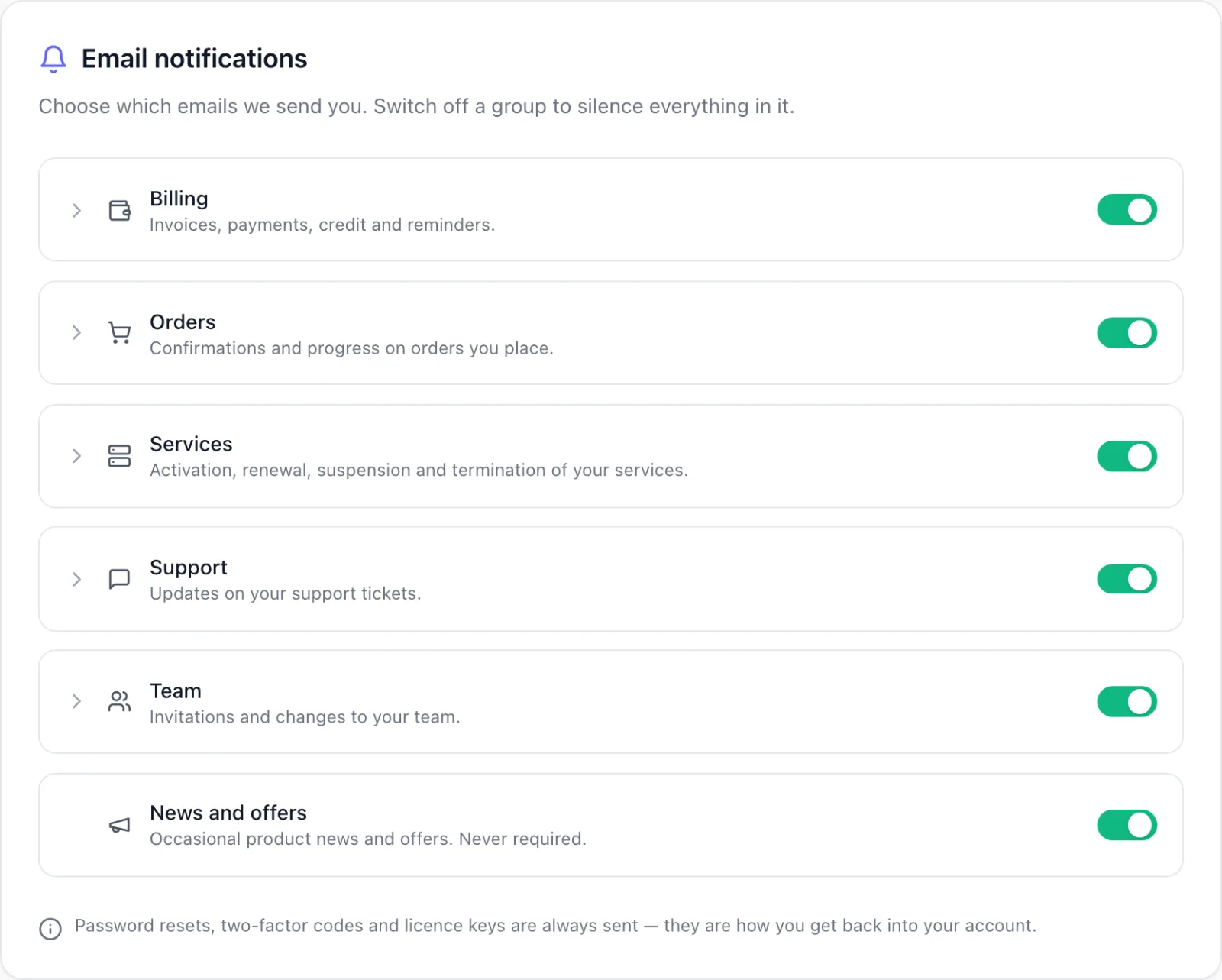
The switches belong to the person who is signed in. If several people use the same account as team members, each person has their own switches, and a change you make does not change what anyone else receives. See Team Members.
How the page is organised
Emails are grouped. Each group row shows a name, a short description and a switch:
| Group | Description shown |
|---|---|
| Billing | Invoices, payments, credit and reminders. |
| Orders | Confirmations and progress on orders you place. |
| Services | Activation, renewal, suspension and termination of your services. |
| Support | Updates on your support tickets. |
| Team | Invitations and changes to your team. |
| News and offers | Occasional product news and offers. Never required. |
A group appears only when your provider sends at least one email in it. If your provider has turned an email off for everyone, it is not listed, because you would never receive it anyway.
The line under a group name changes with your choices:
- the group description, when everything in the group is on;
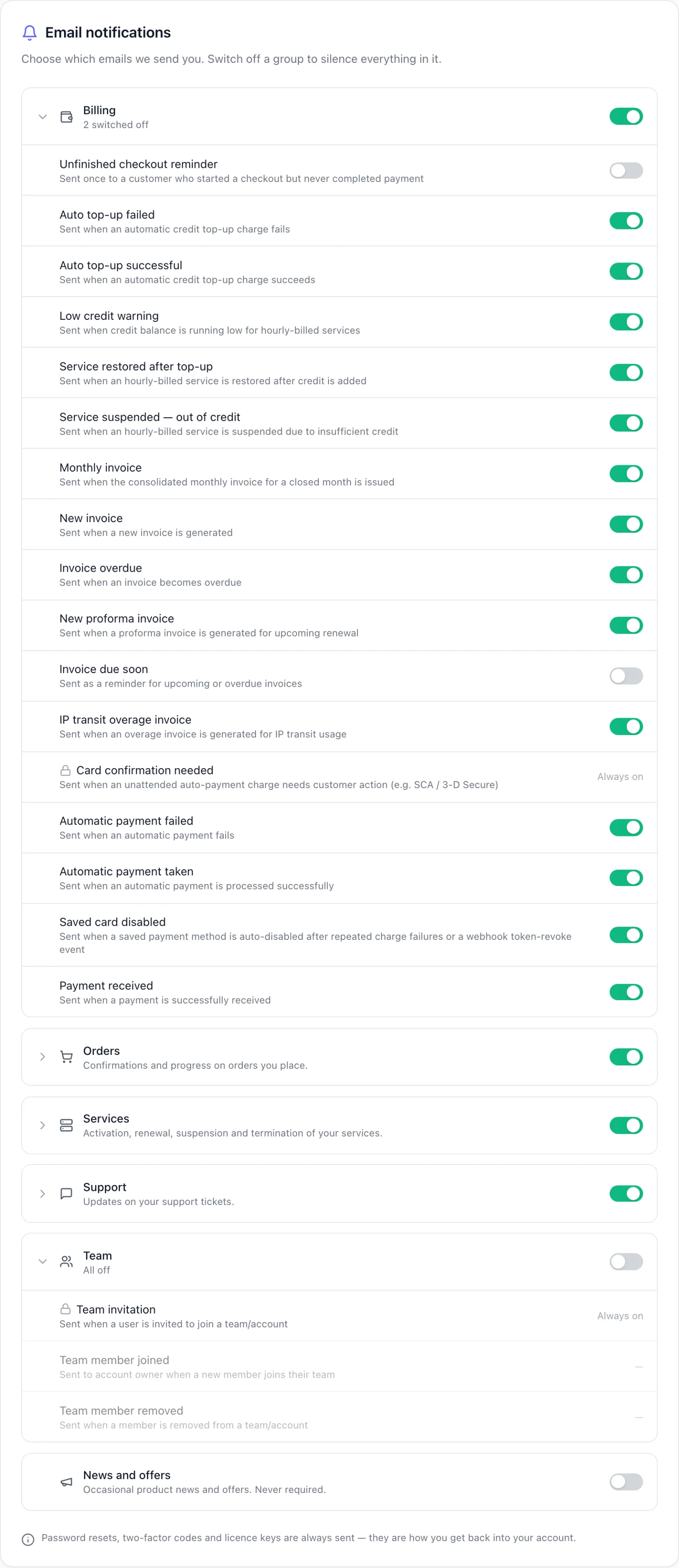
- 2 switched off (or another number), when some emails in the group are off;
- All off, when the group switch is off.
Switch emails on or off
There is no Save button. Each switch is saved the moment you click it.
A whole group
- Click the switch on the group row, for example Orders.
- The line under the name changes to All off. Every email in the group stops, except those marked Always on.
When a group is off, its emails are greyed out and show a dash instead of a switch. Your choices for the single emails are kept. When you switch the group back on, each email returns to the setting it had before.
A single email
- Click the group name (or the arrow next to it) to expand the group.
- Each email is listed with its name, a short description and its own switch.
- Click the switch next to the email you no longer want.
The emails in each group
These are the standard emails and the names the client area shows for them. Your provider may send fewer of them, and may add others that appear under the name your provider gave them.
| Group | Emails |
|---|---|
| Billing | Unfinished checkout reminder, Auto top-up failed, Auto top-up successful, Low credit warning, Service restored after top-up, Service suspended — out of credit, Monthly invoice, New invoice, Invoice overdue, New proforma invoice, Invoice due soon, IP transit overage invoice, Automatic payment failed, Automatic payment taken, Saved card disabled, Payment received |
| Orders | Order confirmation, Order being processed, Order completed |
| Services | Service activated (login details), Server ready (login details), Provisioning failed, Renewal reminder, Service suspended, Service reactivated, Service terminated, VPS Suspended for Abuse, Colocation handover, IP transit handover |
| Support | Ticket received, Reply on your ticket, Ticket closed |
| Team | Team member joined, Team member removed |
Think before switching off billing emails. Switching off New invoice, Invoice overdue or Low credit warning does not stop invoices from being due or services from being suspended. You just stop being told by email. Check Invoices and Payments in the client area regularly if you turn them off.
Emails that are always on
Some emails cannot be switched off. Inside a group they show a padlock and the label Always on instead of a switch:
- Card confirmation needed (Billing). It asks you to confirm an automatic card payment with your bank. Without it the payment fails and you would not know why.
- Team invitation (Team). It carries the link a new team member uses to join.
Account emails are not listed at all, because none of them can be switched off. The note at the bottom of the card says so: Password resets, two-factor codes and licence keys are always sent — they are how you get back into your account. Emails about a reseller account (approved, declined, suspended, reactivated) are always sent too.
If a group contains only emails that are always on, its switch is greyed out.
Emails that carry your server login details
Two emails in Services are marked with a warning, Carries your server login details.:
- Service activated (login details)
- Server ready (login details)
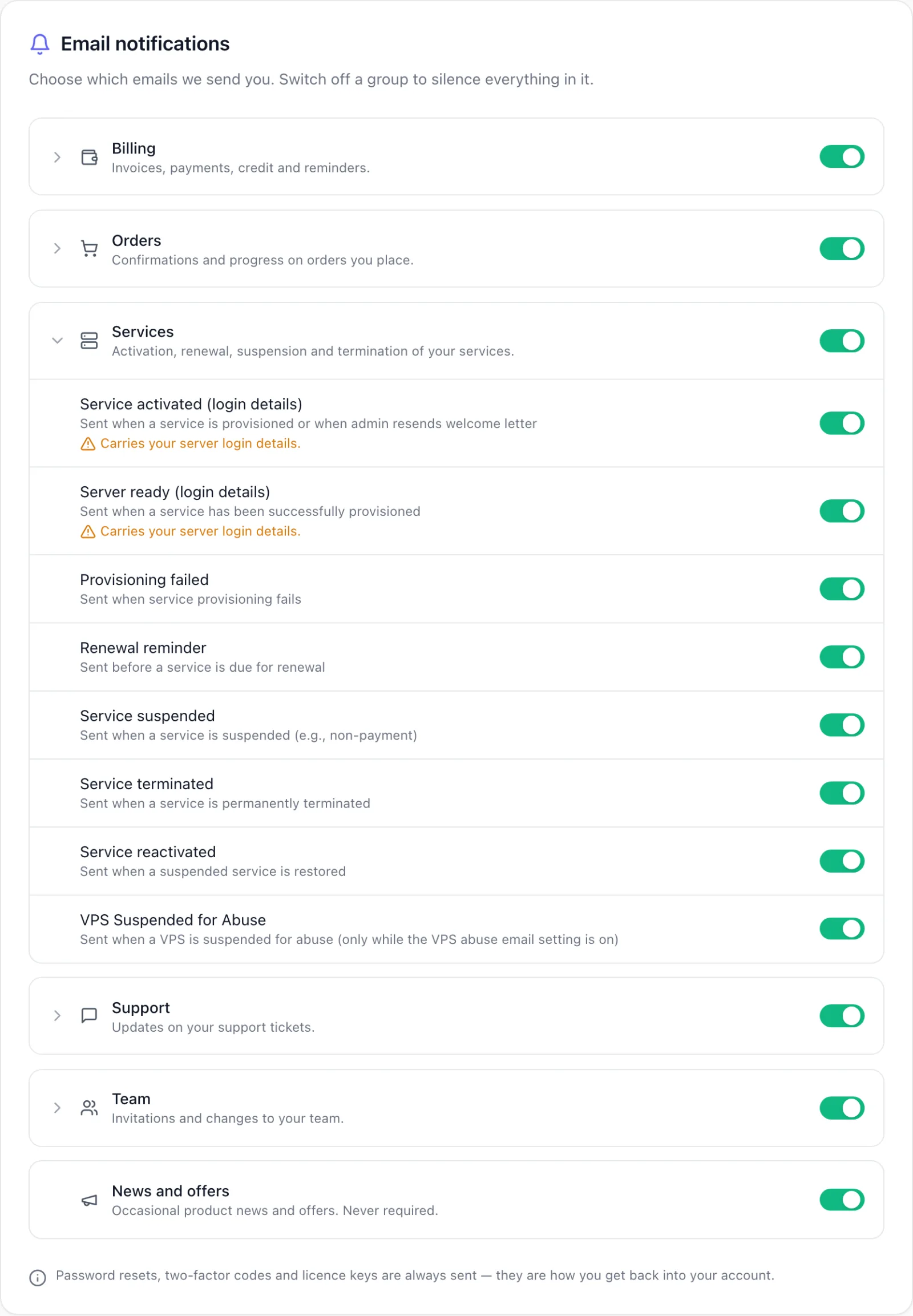
These emails are the only place the root password of a new server is sent, and the client area does not display it. You can switch them off, for example if you build many servers and set your own access, but the client area asks first:
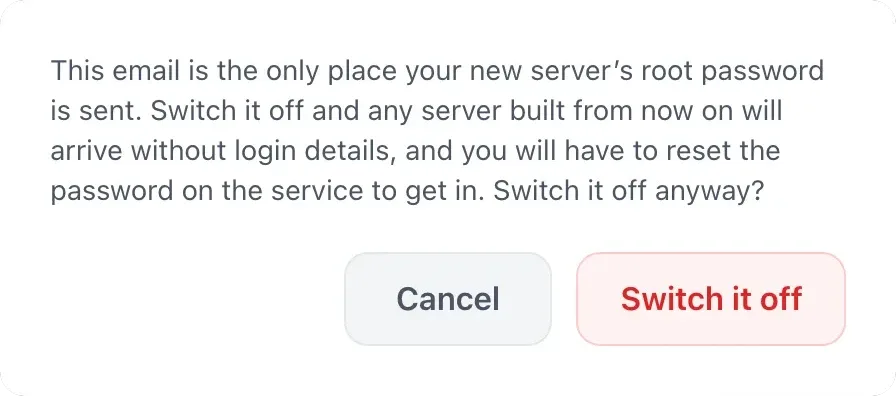
Click Switch it off to go ahead, or Cancel to leave it on. With the email off, any server built from then on arrives without login details, and you have to reset the password on the service to get in. Switching it back on does not resend details for servers built in the meantime. Once the email is switched back on, your provider may be able to resend the welcome email for a service; ask in a ticket. See Managing Your Services.
Switching off the whole Services group stops these emails too, without this question.
News and offers
News and offers covers your provider's campaigns and newsletters. It has a switch but no list of emails.
- Switching it off unsubscribes you from campaigns and newsletters. Invoices, ticket replies and other account emails are not affected; they follow their own switches.
- If you used the unsubscribe link in a campaign email, this switch already shows as off.
- Switching it on subscribes you again.
What changes, and when
- Email only. These switches control emails. The notifications shown inside the client area are not affected.
- From now on. A change applies to emails sent after it. An email already on its way is not recalled.
- Your provider can see your choices. Staff see the same switches on your account, with who changed each one and when. If you ask in a ticket, they can change a switch for you, and you see the change here straight away.
Troubleshooting
| Problem | What to check |
|---|---|
| I still get an email I switched off. | Check that the email is not marked Always on, and that it is the email you switched off (open the group to see the names). The switches apply to the address of the person signed in; another team member's emails follow their own switches. |
| An email I want never arrives, but its switch is on. | Check your spam folder first. Your provider can also stop mail to an address, for example after messages to it bounced. Open a ticket so they can check their email log. See Getting Support. |
| An email I expect is not in the list. | Your provider does not send it, so there is nothing to switch. |
| News and offers turns itself off again after I switch it on. | Your provider has stopped marketing mail to your address on their side, for example after a bounce or a spam report. Ask them in a ticket to allow it again. |
| The message Could not load your notification preferences. appears and the tab stays empty. | The page could not load your settings. Reload the page. If it keeps happening, contact your provider. |
| A switch jumps back and the message Could not save that change. appears. | The change was not saved, and the switch shows the setting that still applies. Try again after a moment. |