
Discord notifications
Post FluxBilling events to a Discord channel through a webhook: orders, payments, invoices, tickets and services, with editable message templates.
The Discord plugin posts a message to a Discord channel when something happens in FluxBilling: a new order, a paid invoice, a failed payment, a new ticket, a suspended service and more. It uses a Discord webhook, so there is no bot to host and nothing to install on the Discord side beyond the webhook itself. You choose which events post a message, and you can edit the text of every message. The plugin is free and is listed in the plugin marketplace of every FluxBilling panel.
This guide covers plugin version 1.7. It is for your team: the messages go to your Discord channel, and your customers never see them. For how notification plugins work in general, see Notification plugins.
Who supports this integration. The plugin is built and maintained by FluxBilling. If something does not work, contact FluxBilling support at contact@fluxbilling.app or through fluxbilling.app/contact. Questions about Discord itself, your server or its permissions go to Discord support.
What you need before you start
- A Discord server with a text channel for the notifications. A private channel that only your staff can read is the usual choice, because messages include client names, email addresses, amounts and ticket subjects.
- The Manage Webhooks permission on that server or channel. Server owners and administrators have it.
- Outbound HTTPS access from your FluxBilling panel to Discord. Each message is sent by your panel straight to the webhook address.
You do not need a Discord developer account, an application or a bot token.
Step 1: Create a webhook in Discord
- In Discord, open the channel's settings (Edit Channel), or the server's Server Settings, and go to Integrations.
- Open Webhooks and create a new webhook.
- Give it a name, for example FluxBilling, and if you like an avatar. Discord shows this name and avatar as the sender of every message. Check that the webhook posts to the channel you want.
- Click Copy Webhook URL.
Discord describes these screens in Intro to Webhooks. The webhook itself is documented in Discord's developer documentation under Webhook resource.
Treat the webhook URL like a password. Anyone who has it can post to your channel. FluxBilling stores it encrypted. If it leaks, delete the webhook in Discord, create a new one and paste the new URL into the plugin.
Step 2: Install the plugin
- In the FluxBilling admin panel, open Settings (the gear icon in the top bar).
- Under Integrations, open Marketplace. Stay on the Browse tab.
- Open the Discord Notifications card and click Get for Free.
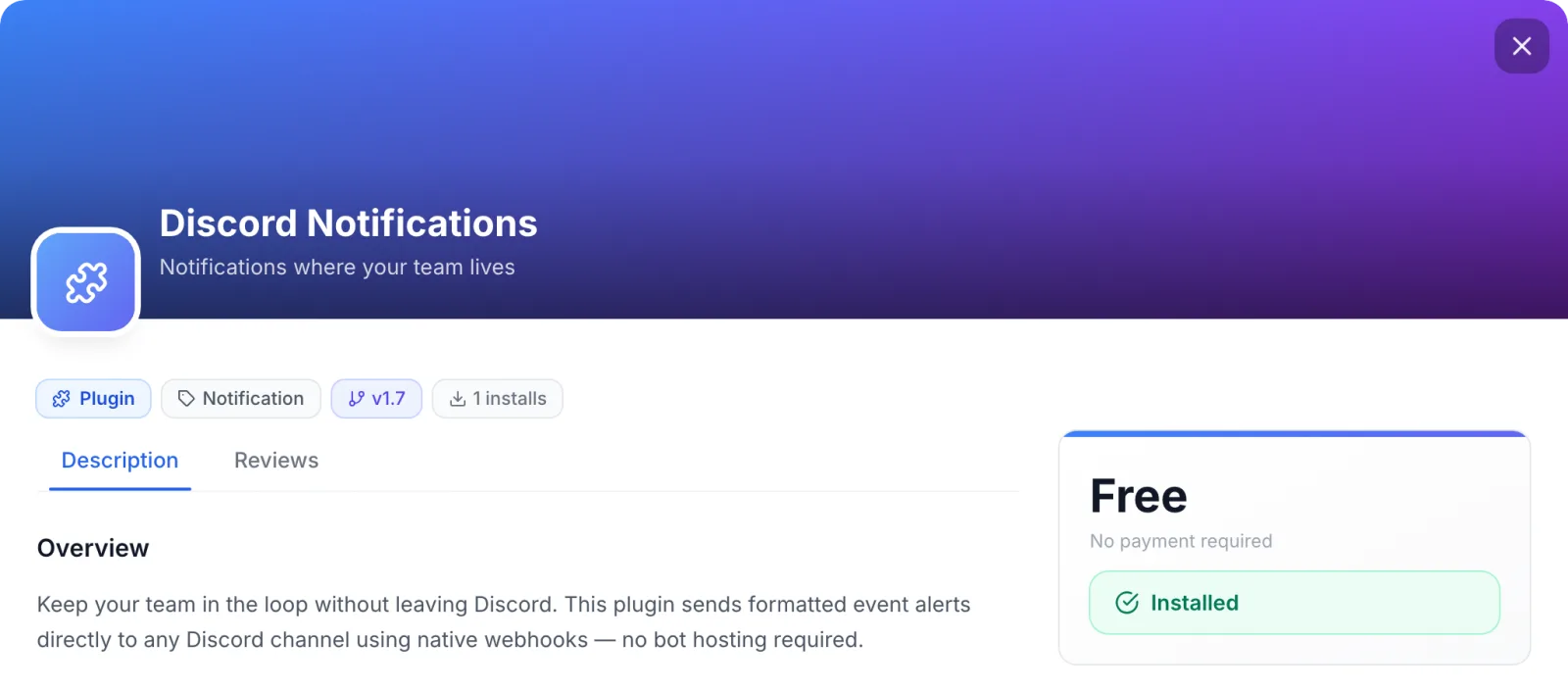
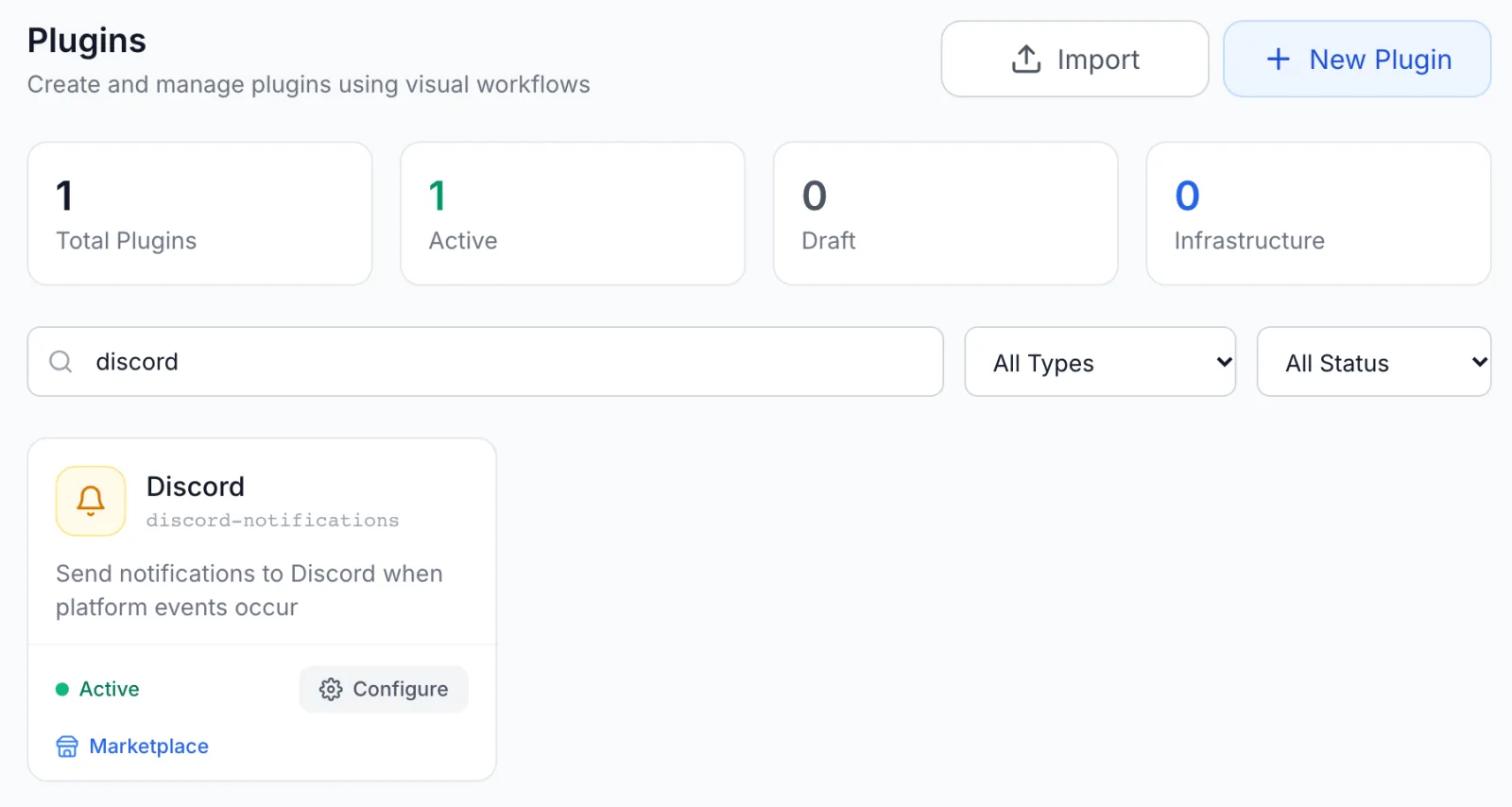
FluxBilling confirms with Plugin "Discord Notifications" installed and ready to use. The plugin is switched on straight away and appears under Settings → Integrations → Plugins as Discord, marked Active. It sends nothing until you add the webhook URL and switch on at least one event.
Step 3: Add the webhook URL
- Open Settings → Integrations → Plugins.
- On the Discord card, click Configure. The dialog opens on Notification Settings.
- In Connection Settings, paste the URL from step 1 into Webhook URL. The eye icon shows or hides it.
- Click Save Configuration at the top of the dialog. It stays greyed out until you change something. FluxBilling shows Configuration saved.
| Field | What to enter |
|---|---|
| Webhook URL (required) | The full webhook URL you copied from Discord. It begins with https://discord.com/ and ends with the webhook's ID and token. All messages from this plugin go to the channel this webhook belongs to. |
That is the only connection setting. There is no bot token, channel ID or colour to set: the channel is part of the webhook.
Step 4: Choose the events
Below Connection Settings the events are grouped into Orders, Tickets, Payments, Invoices, Users and Services. The groups start collapsed; click one to open it. Each group header shows how many of its events are on, for example 2 / 3 enabled.
- Open a group and switch on the events you want.
- When an event is on, a Message Template box appears under it with a ready-made message. Keep it or edit it (see Message templates).
- Click Save Configuration.
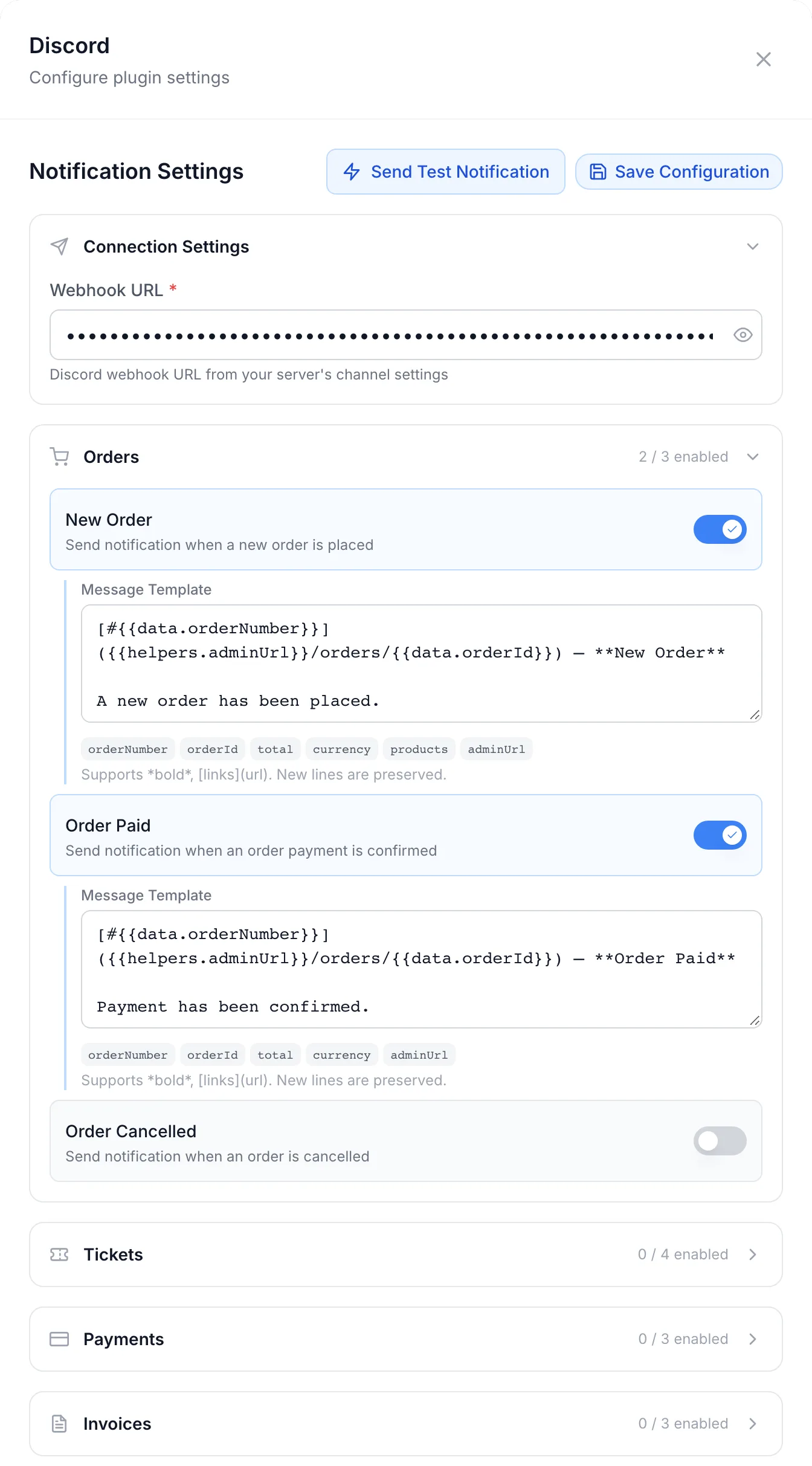
Every event starts switched off on a new install. Nothing is posted for an event until you switch it on and save.
| Switch | Group | Posts when |
|---|---|---|
| New Order | Orders | A new order is placed. |
| Order Paid | Orders | An order's payment is confirmed. |
| Order Cancelled | Orders | An order is cancelled. The message includes the reason, or Not specified. |
| New Ticket | Tickets | A new support ticket is opened. |
| Ticket Reply | Tickets | A customer replies to a ticket. Replies from your staff do not post a message. |
| Ticket Closed | Tickets | A ticket is closed. |
| Live Chat Reply | Tickets | A visitor sends a message in a live chat. Only while live chat is turned on (see Live chat). |
| Payment Completed | Payments | A payment succeeds. The message links the invoice, or the proforma if no invoice exists yet, with the amount and the gateway. |
| Payment Failed | Payments | A payment fails, including a declined automatic charge of a saved payment method. |
| Payment Refunded | Payments | A payment is refunded. |
| Invoice Created | Invoices | A new invoice is generated. The message shows the total and the due date. |
| Invoice Paid | Invoices | An invoice is marked as paid. |
| Invoice Overdue | Invoices | An invoice becomes overdue. The message shows how many days. |
| New User | Users | A new user signs up. |
| User Verified | Users | A user verifies their email address. |
| Service Provisioning | Services | A service starts being set up. |
| Service Activated | Services | A service becomes active. |
| Deployment Failed | Services | Setting up a service fails. The message shows the stage and the error. |
| Service Suspended | Services | A service is suspended. |
| Service Unsuspended | Services | A service is unsuspended. |
| Service Terminated | Services | A service is terminated. |
| Service Renewed | Services | A service is renewed. |
| Upgrade Requested | Services | A plan upgrade is requested and is waiting to be paid. The message shows the old and new plan, the amount due now and the invoice or proforma, or No charge. |
| Upgrade Completed | Services | A plan upgrade has been applied to the service. |
| Upgrade Failed | Services | A paid plan upgrade fails to apply. The message shows the error. |
Most messages link straight to the order, invoice, ticket, client or service in your admin panel, so whoever reads it can click through. The links open only for staff who can sign in to the admin panel.
Message templates
Each event's Message Template is plain text with placeholders. Discord renders it as Markdown: **bold**, *italic*, `code` and links written as [label](https://…). New lines are kept.
- Placeholders. Write
{{data.field}}to insert a value from the event, for example{{data.orderNumber}}or{{data.subject}}. Under most templates, small buttons insert common field names for that event; click one to add it at the end of the text. The buttons are a shortcut, not a complete list: some events show none, and the ready-made template can use fields that have no button. The ready-made template for each event is the best guide to the fields it carries. - Fallbacks and conditions.
{{data.reason || 'Not specified'}}prints a fallback when the value is empty.{{data.invoiceId ? 'Invoice #' + data.invoiceNumber : 'No invoice yet'}}picks one of two texts. Text can be joined with+. - Formatting helpers.
{{helpers.formatCurrency(data.total, data.currency)}}formats an amount,{{helpers.formatDate(data.dueDate)}}a date, and{{helpers.truncate(data.subject, 60)}}shortens long text. - Back to the original. If you empty a template and save, the plugin uses the ready-made message for that event again.
An example for New Ticket:
**New ticket {{data.ticketNumber}}** ({{data.priority}})
{{helpers.truncate(data.subject, 80)}}
From: {{data.clientName}}, department {{data.department}}
If a placeholder names a field the event does not carry, the placeholder is posted exactly as you wrote it. Compare with the ready-made template, and send a test (next step), to check the names.
Step 5: Send a test message
- Click Save Configuration first. The test uses your saved settings.
- Click Send Test Notification at the top of the dialog.
- Pick an Event. Sample Payload (JSON) fills in with example data for that event; you can edit it.
- Leave Notification Flow on Send Notification and click Send.
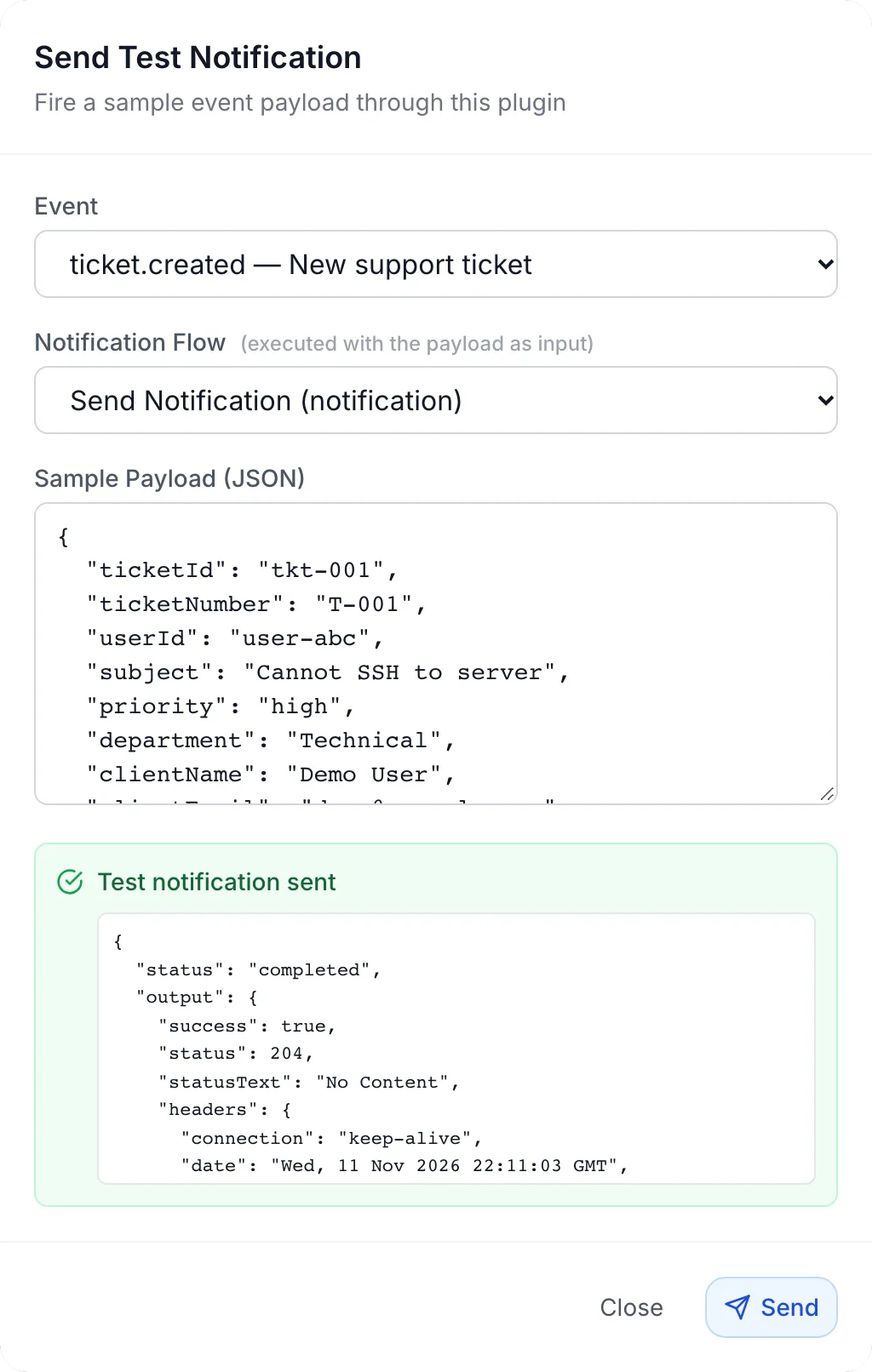
On success the dialog shows Test notification sent and the message appears in your Discord channel, built from that event's template. The test does not need the event to be switched on. Test sends are not added to the Delivery Log.
The Event list in the test covers the orders, tickets, payments, invoices, users and the main service events. To try the template of an event that is not in the list, pick a similar event and paste the fields you need into the sample payload.
What your customers see
Nothing. The plugin adds nothing to the client panel, checkout, invoices or customer emails. Messages go only to your Discord channel. Customer emails keep working exactly as before; see Notifications.
How sending works
- Each event posts one message, right after it happens. The message is posted as the webhook's name and avatar.
- One channel per plugin. Every event you switch on goes to the channel of the one webhook URL.
- Only while the plugin is active. If you disable the plugin in its card menu on Settings → Integrations → Plugins, nothing is posted until you enable it again. Your settings are kept.
- Rate limit. The plugin posts at most 60 messages a minute for any one event. Further events of that kind in the same minute are skipped and are not logged.
- Retries. If Discord does not accept a message, FluxBilling tries it again twice, about five and about fifteen minutes later. After three failed attempts the entry stays Failed.
Delivery Log
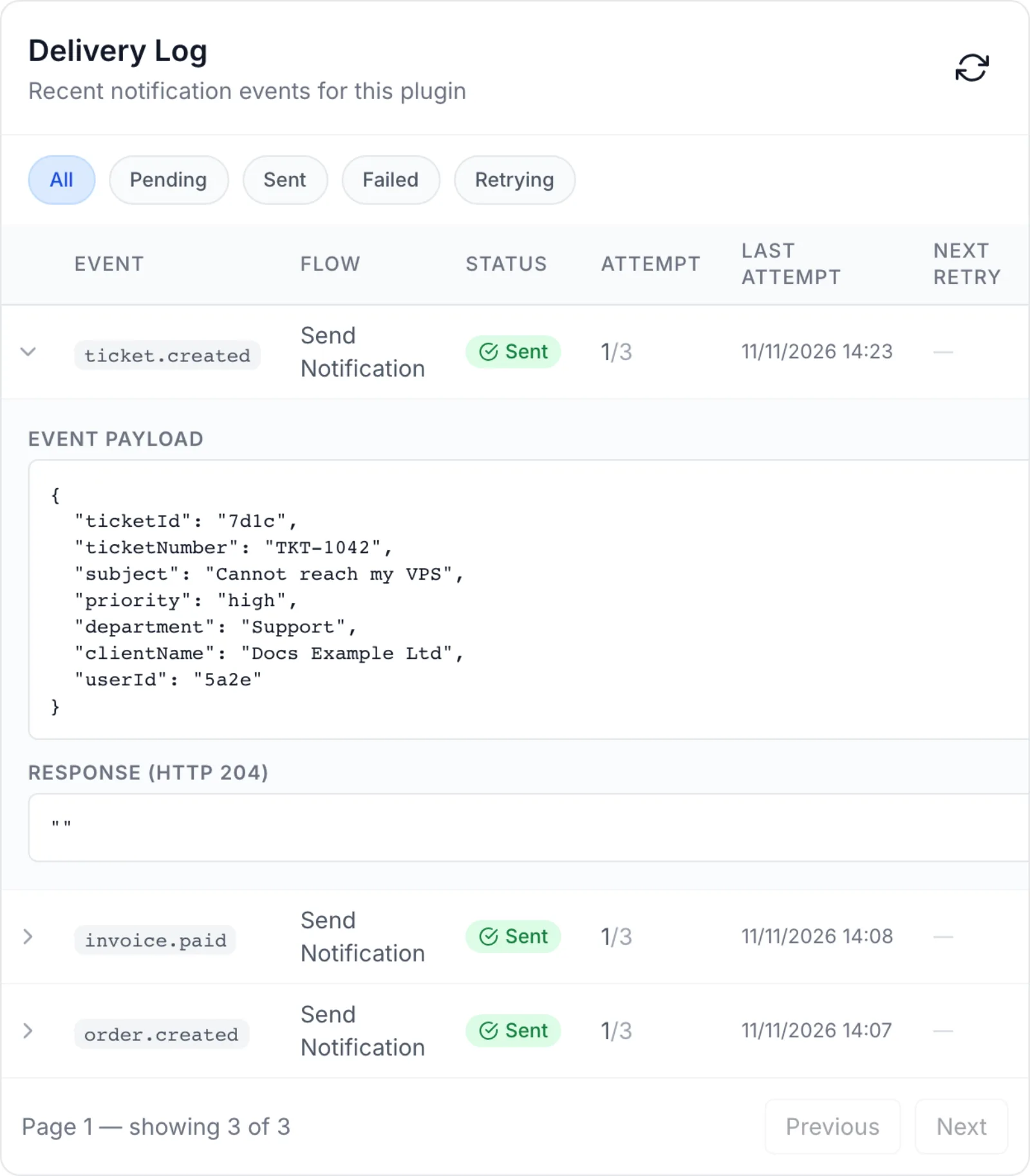
The bottom of the Configure dialog shows the Delivery Log, the recent notification events for this plugin. Filter it by All, Pending, Sent, Failed or Retrying, and click Refresh to reload it. Columns: Event, Flow, Status, Attempt, Last Attempt, Next Retry and Error. Open an entry to see the event payload and Discord's response.
Discord answers a message it accepted with HTTP 204 and no content, so a sent entry shows Response (HTTP 204) with an empty value ("").
Updating the plugin
Open Settings → Integrations → Marketplace, switch to Installed and click Check for Updates. When a new version is available, click Update to v…. See Plugin catalogue.
Troubleshooting
| Message or symptom | What to check |
|---|---|
| Missing required configuration: Webhook URL. Set these in the plugin config and save before testing. | The webhook URL is empty, or you typed it but did not save. Paste it, click Save Configuration, then send the test again. |
| Not Found | The webhook was deleted in Discord, or the URL is incomplete or mistyped. The test result and the Error column of the Delivery Log show Not Found; the response below it in the test dialog contains Discord's own text, Unknown Webhook. Copy the URL again from Discord, or create a new webhook, and save. |
| Bad Request | Discord refused the message itself. The most common cause is a message longer than Discord's 2,000-character limit, for example a long live chat message or error text. Shorten the template, or use helpers.truncate on long fields. |
| Only http:// and https:// URLs are allowed, Access to internal URLs is not allowed | The Webhook URL field does not hold a Discord address. Paste the full URL from Discord. |
| Test works, but real events post nothing | Check that the event's switch is on and saved, and that the plugin shows Active on Settings → Integrations → Plugins. Then look in the Delivery Log: no entry at all means the event has not happened yet or was skipped by the rate limit. |
A message shows text like {{data.something}} | The template names a field the event does not carry. Check the field names in the template for that event, then send a test. To go back to the ready-made message, empty the template and save. |
| Links in the message do not open your admin panel | The links point to the admin panel address your FluxBilling panel is set up with. Contact FluxBilling support if they point to the wrong address. |
| Bold text shows asterisks, or italics instead of bold | Discord needs two asterisks for bold: **text**. One asterisk on each side gives italics. |
Limits
- Messages are plain Discord Markdown text. The plugin does not send embeds, colours, buttons, files or images.
- One webhook URL, so one channel, per plugin. Different events cannot be sent to different channels.
- Messages are one-way. Replies or reactions in Discord do nothing in FluxBilling.
- A message cannot be longer than 2,000 characters; Discord refuses longer ones.
- Monitoring alerts are not among the events. Set up their delivery in your monitoring settings.
- The plugin does not post to forum or media channels, which need a thread for each message. Use a normal text channel.
- Discord limits how often a webhook may post. A large burst of events, for example a mass invoice run with Invoice Created switched on, can be slowed down or refused by Discord. Switch on only the events your team needs to see.
For Telegram or Slack, see Telegram notifications and Slack notifications. To build your own notification channel, see Notification plugins.
Discord is a trademark of Discord Inc. FluxBilling is not affiliated with Discord Inc.