
Automatic Sales
Lower prices without a code: set up an automatic sale by product, category or location, and see how long the sale price lasts.
An automatic sale lowers the price of the products you choose without the customer typing a code. Checkout takes the percentage off every order line the sale covers, and the order forms show the regular price struck through next to the sale price. Use it for a launch price, a seasonal sale on one product line, or a cheaper rate in one datacentre.
An automatic sale is a discount code with one extra switch turned on. You build it in the same dialog as a promo code, so this page only covers what is different. For the fields every code shares, see Discount Editor. For the list of codes and the on/off switch for discounts, see Discounts & Referrals.
Before you start
- No feature toggle is needed. Automatic sales are part of the discount system.
- Discounts must be on. In Settings → Promotions → Discounts & Referrals, the switch in the Discount Codes card must say Enabled. While it is off, the card shows: "Discounts are off: checkout refuses every code and automatic sales are paused. Nothing is deleted."
- You need an admin account that can open Settings.
Create an automatic sale
- Go to Settings → Promotions → Discounts & Referrals.
- In the Discount Codes card, click New Code. The New Discount Code dialog opens.
- Fill in Code. For a sale, this is only an internal reference: customers cannot type it at checkout. It still has to be unique, 3 to 50 characters, and use only letters, numbers, hyphens and underscores. Pick something that reads well, for example
SPRING-VPS. - Fill in Name, for example Spring VPS sale. Customers see this name: it labels the discount line on their invoice and the sale line on the VPS order form.
- Tick Apply automatically (no code needed). Percentage is selected for you and Fixed Amount is greyed out, because a sale is always a percentage.
- Enter the Discount Value, for example
20for 20% off. It must be more than 0 and no more than 100. - Check Usage Limits. The second box (Per user) is filled with
1on a new code, which means each customer gets the sale price on one order only. Clear it if every order should get the sale. See Usage limits on a sale. - Click Advanced Options and set who and what the sale covers (the next section explains each option).
- Leave Active on and click Create Code. The message "Discount code created" confirms it, and the sale goes live on every order form it covers, at once or on its Start Date.
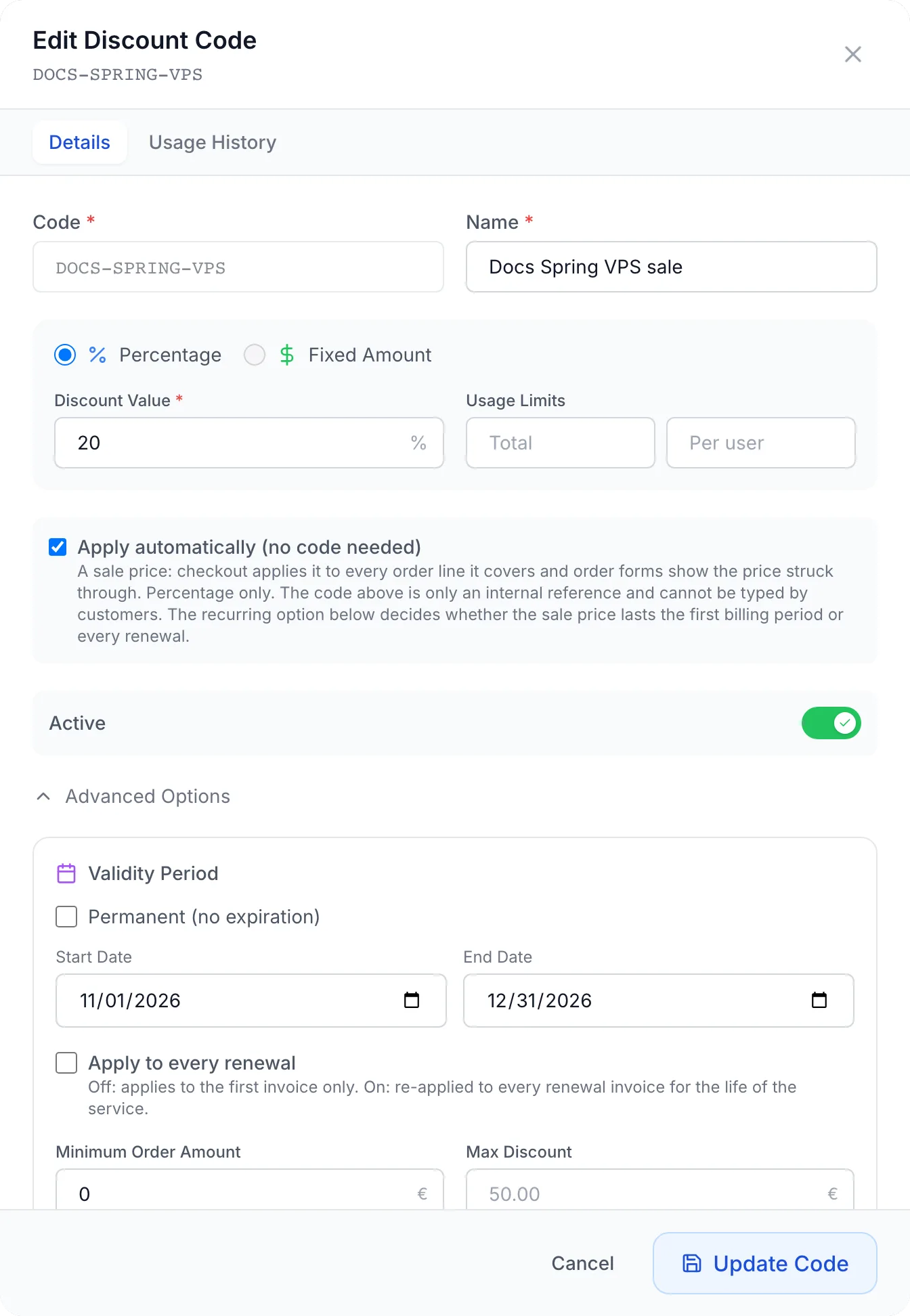
The options that shape a sale
| Option | What it does on a sale |
|---|---|
| Discount Value | The percentage taken off the price of each line the sale covers. |
| Usage Limits (Total, Per user) | Total: how many orders may get the sale across all customers. Per user: how many orders each customer may get it on. Empty means unlimited. |
| Active | Off pauses the sale without deleting it. |
| Validity Period | With Permanent (no expiration) ticked, the sale runs until you stop it. Untick it to set a Start Date and an End Date. The sale runs to the end of the end date (23:59 UTC). |
| Apply to every renewal | Off: the sale price lasts for the first billing period only. On: the service keeps the sale price on its renewals. See How long the sale price lasts. |
| Applies To | All Products, Specific Products or Specific Categories. Tick the products or categories in the list that appears. |
| Locations | Tick locations to limit the sale to orders placed in those datacentres. "None selected = any location." |
| Description | Internal notes for your team. Customers do not see it. |
| Minimum Order Amount, Max Discount | Minimum Order Amount is ignored on a sale. Max Discount does not cap the first order, but on a sale with Apply to every renewal it caps the amount taken off each renewal of an upfront cycle. Leave both empty unless you want that renewal cap. |
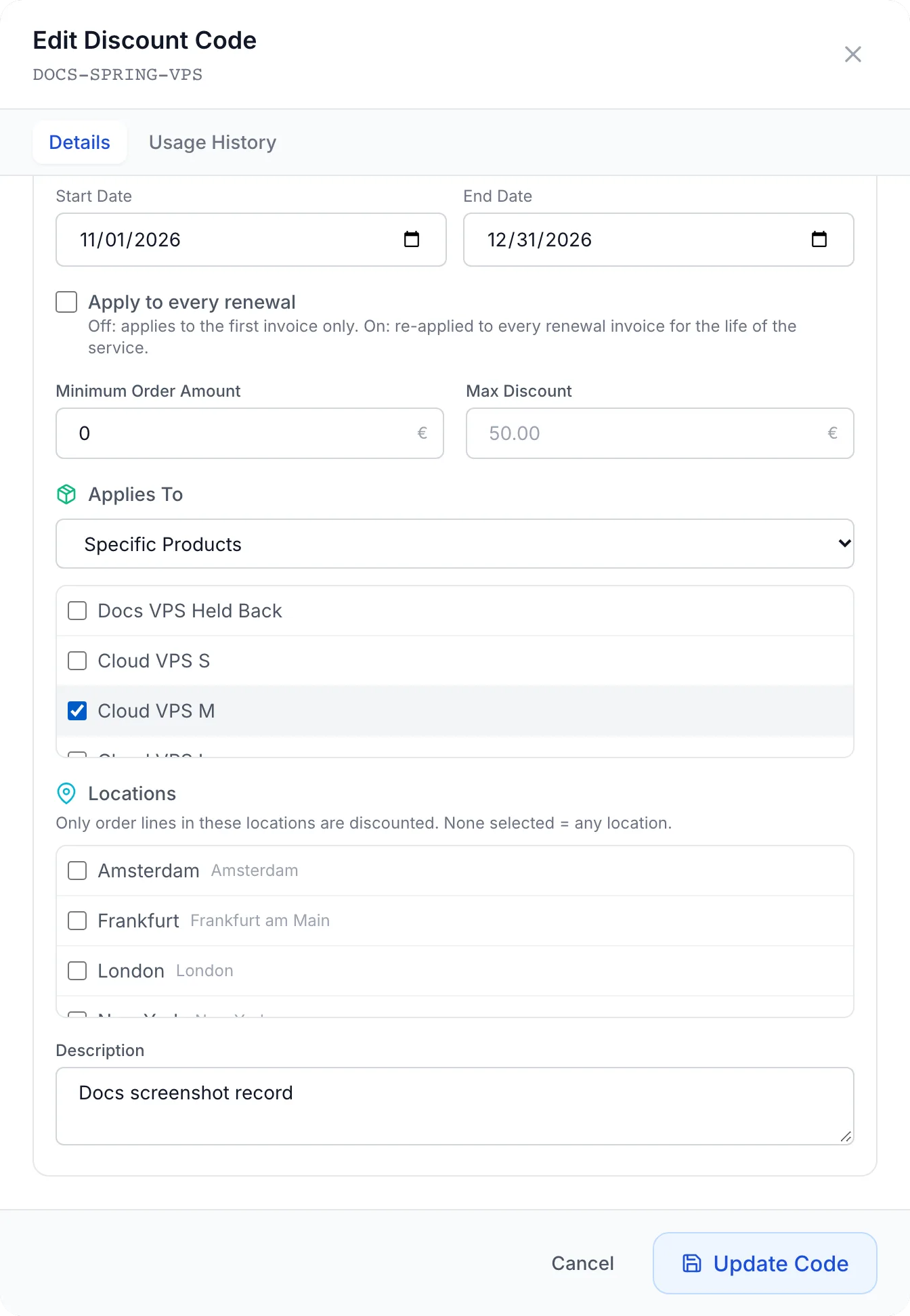
What the sale covers on an order
- The product's own price. The sale takes its percentage off the plan price, including the premium of the chosen location. It does not discount add-ons (product options) or setup fees.
- Every line it covers, one by one. In a cart with several products, each covered line is discounted. Lines outside the sale's products, categories or locations are charged in full.
- One sale per line. When two sales cover the same line, the one with the higher percentage is used.
- Upfront billing cycles (monthly, quarterly, annually and so on): the order's invoice or proforma (depending on your billing document setting) gets a negative line named Discount: sale name. It is taxed like the lines it discounts, so VAT is worked out on the lower price.
- Hourly services: there is no upfront invoice. The service is created with the lower hourly rate instead. See Hourly Billing.
How long the sale price lasts
This depends on Apply to every renewal and on the billing cycle the customer picks.
| Billing | Apply to every renewal off | Apply to every renewal on |
|---|---|---|
| Upfront cycle | Only the first invoice is discounted. The service renews at the full price. | Every renewal invoice carries the same discount line. |
| Hourly | The lower rate applies for one month from the order, then the full hourly rate comes back on its own. | The lower hourly rate stays as long as the service keeps its plan and billing cycle. |
The price a customer gets stays with their service: ending, pausing or deleting the sale later stops it for new orders only. On an hourly service, a change of plan or billing cycle sets the new full rate and ends the lower rate.
What your customers see
Nothing changes in how customers order. They do not need to type anything.
- VPS order form: the plan cards and the price summary show the regular price struck through and the sale price beside it. The summary adds a line with the sale name and the amount saved, followed by the percentage and how long it lasts: first billing period, first 30 days (hourly) or every renewal. A sale with an end date adds order by and the date. Each location the sale covers carries a percentage badge, so the customer can see where the sale applies.
- Plugin-based order forms: the plan price is shown struck through next to the sale price for the chosen location.
- Checkout: each line on sale shows the regular price struck through, the sale price, and the percentage with first billing period, first 30 days or every renewal.
- Invoice or proforma: the discount line Discount: sale name. On renewal invoices of a sale with Apply to every renewal, the line shows the sale name and its code.
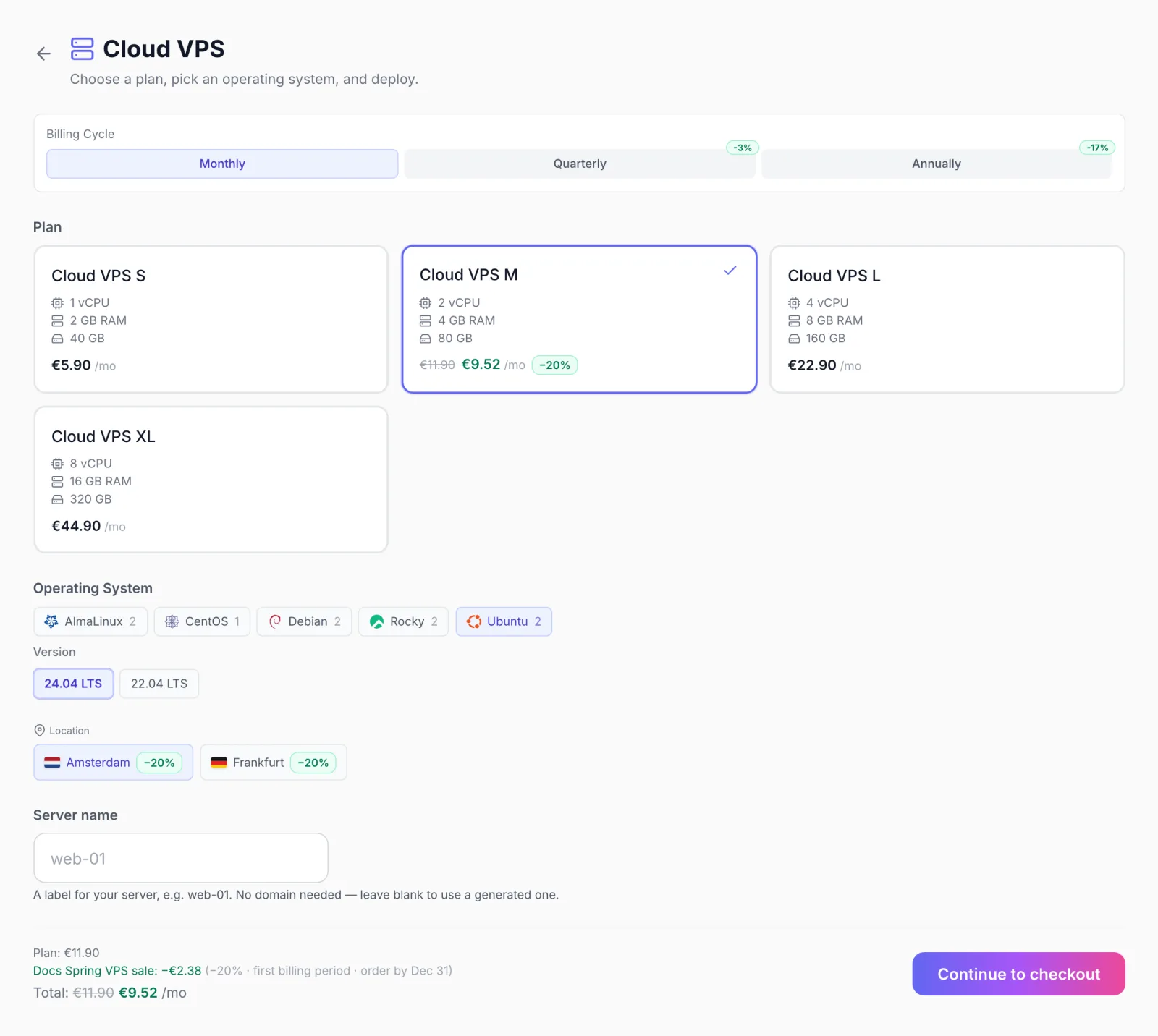
What your staff see
- Discount Codes list: a sale carries an Automatic badge next to its code. A sale with Apply to every renewal shows Every renewal under its percentage. The status column shows Active, Inactive, Scheduled (start date not reached), Expired or Used up.
- Usage History: open the sale and choose the Usage History tab to see each customer who got the sale, with the amount taken off and the date.
- Service page: a service ordered during a sale shows a Sale: row in its billing details, with the sale name and percentage and one of these notes:
- First invoice only (… off) · renews at … for an upfront cycle without renewals,
- Taken off every renewal for an upfront cycle with Apply to every renewal,
- the current and full hourly rate and the date the full rate returns, or Ended · full rate … in force, for hourly services with a first-month sale.
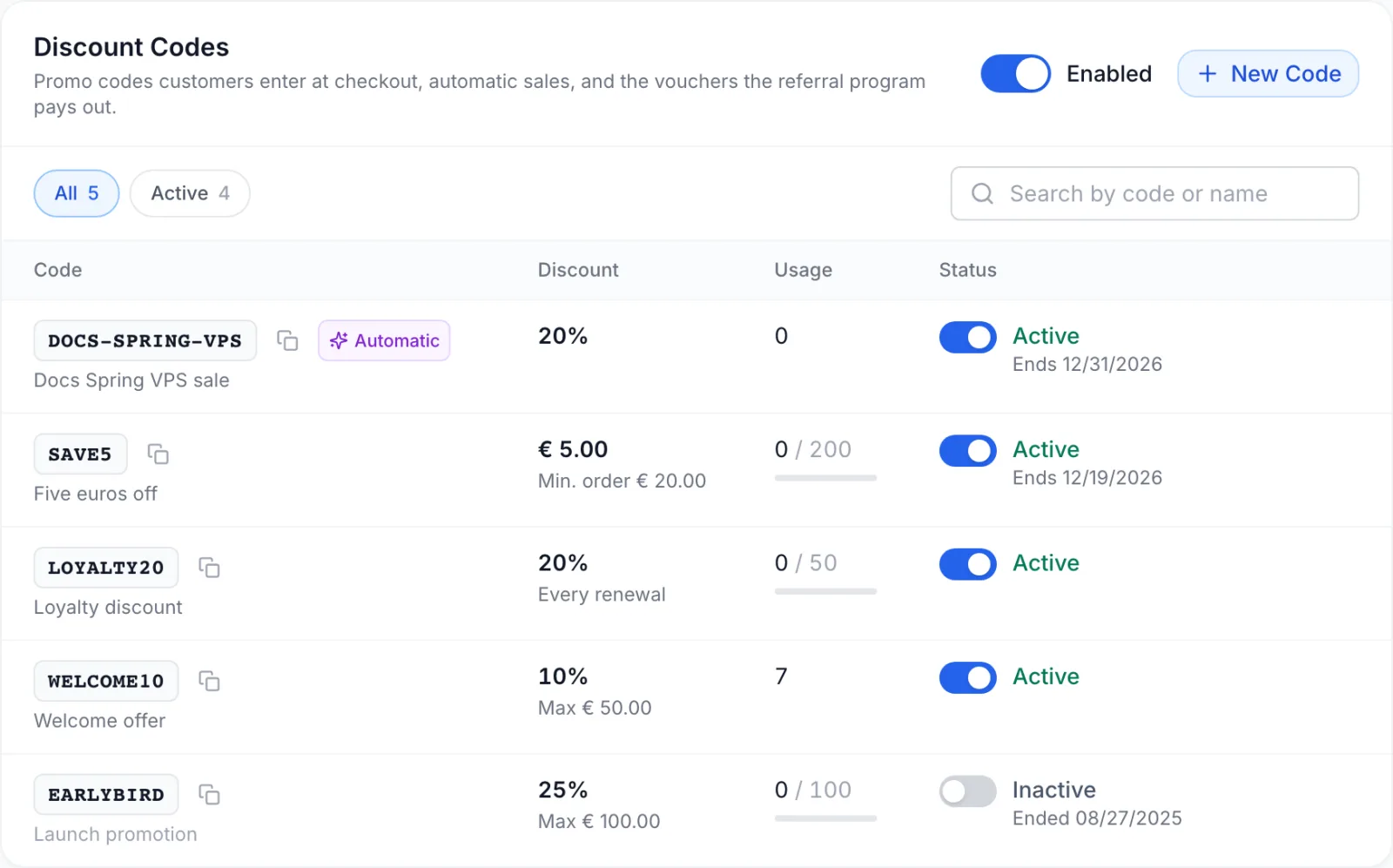
Usage limits on a sale
- One use per order. Each order that gets the sale counts as one use, however many lines it covers.
- Total: when the sale has been used that many times it shows Used up and order forms go back to the full price.
- Per user: once a customer has reached it, their next orders are priced in full. Other customers still get the sale. The checkout summary prices the order in full for a customer who has reached the limit.
Sales and other discounts
- Promo codes: a customer can still enter a promo code on an order with a sale. The code never discounts a line that is already on sale. It only applies to the other lines in the cart that it covers.
- Reseller prices: a product a reseller buys at their wholesale price never gets the sale on top. See Reseller Program.
- Orders you place for a client: an order created in the admin panel under Orders → New Order is priced without the sale. If the customer should get the sale price, let them order from the client area, or adjust the price yourself.
Stop or change a sale
- Pause it: switch it off in the status column of the Discount Codes list, or turn off Active in the editor. Switch it on again to resume.
- End it on a date: set an End Date under Validity Period.
- Change it: click the sale, edit it and click Update Code. New orders use the new values. Services that were already ordered keep the price they got.
- Turn it back into a promo code: untick Apply automatically (no code needed). From then on customers must type the code to get the discount.
- Pause every sale at once: turn off the switch in the Discount Codes card. This also stops every promo code and referral voucher until you turn it back on.
Troubleshooting
- "Percentage discount cannot exceed 100%" or "Discount value must be greater than 0": fix the Discount Value.
- "Code and name are required": a sale needs a Code and a Name even though customers never type the code.
- A customer typed the sale's code and got "Invalid discount code": that is expected. A sale's code cannot be redeemed. The sale is already on the price of the lines it covers.
- The order form shows the full price: check that discounts are Enabled, the sale is Active and not Scheduled, Expired or Used up, the product or its category is in Applies To, and the location the customer picked is ticked under Locations (or none are ticked). Also check the customer's Per user limit and whether they buy at reseller prices.
- Add-ons or the setup fee are not discounted: that is expected. A sale only discounts the plan price and its location premium.
- An hourly service went back to the full rate: either the sale did not have Apply to every renewal, so the lower rate lasted one month (the service page shows Ended · full rate … in force), or the service changed plan or billing cycle, which sets the new full rate.
Related articles
- Discount Editor: every field of the discount dialog.
- Discounts & Referrals: the settings page, the code list and the referral program.
- Discounts: promo codes customers type at checkout.
- Hourly Billing: how hourly services are charged.